Track leases and key dates
Record each lease against its property and unit, capture the rent and term, and keep renewal and expiry dates in clear view.
Find and record a lease
Leases hang off the property they belong to.
-
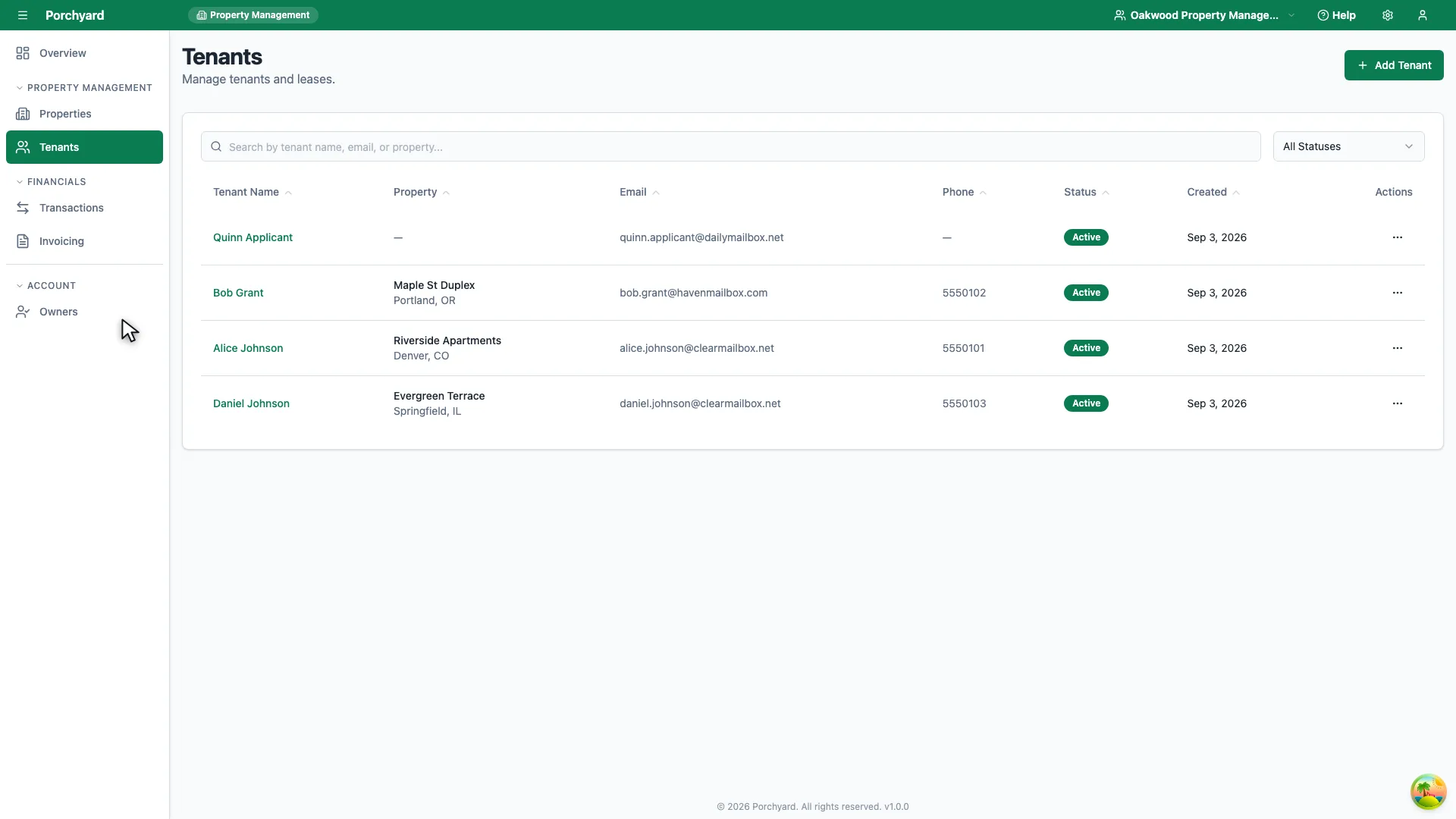
Step 1 of 4
Tenants in the sidebar lists the people renting from you.
-
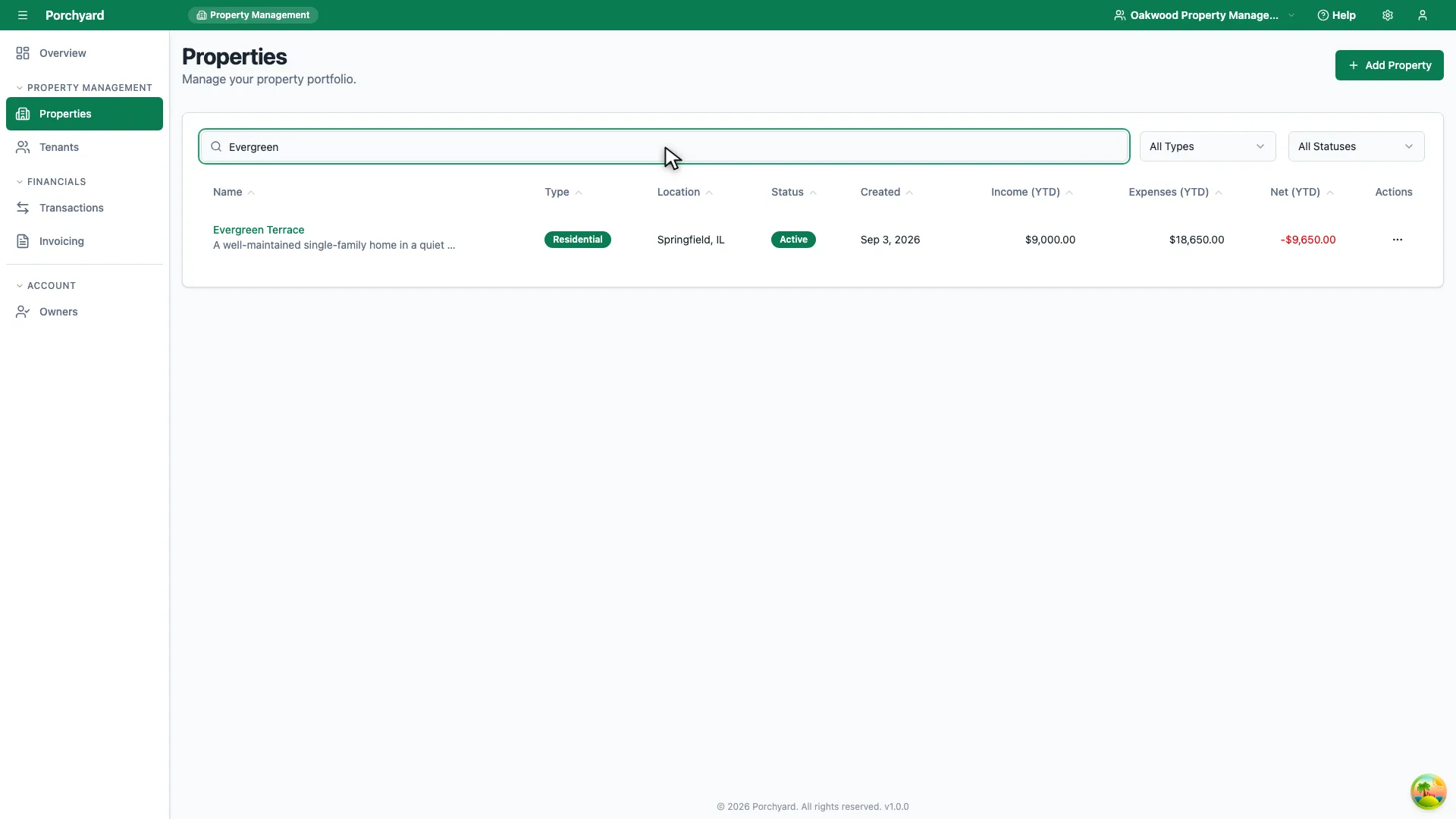
Step 2 of 4
A lease belongs to a property, so start from the property it covers.
-
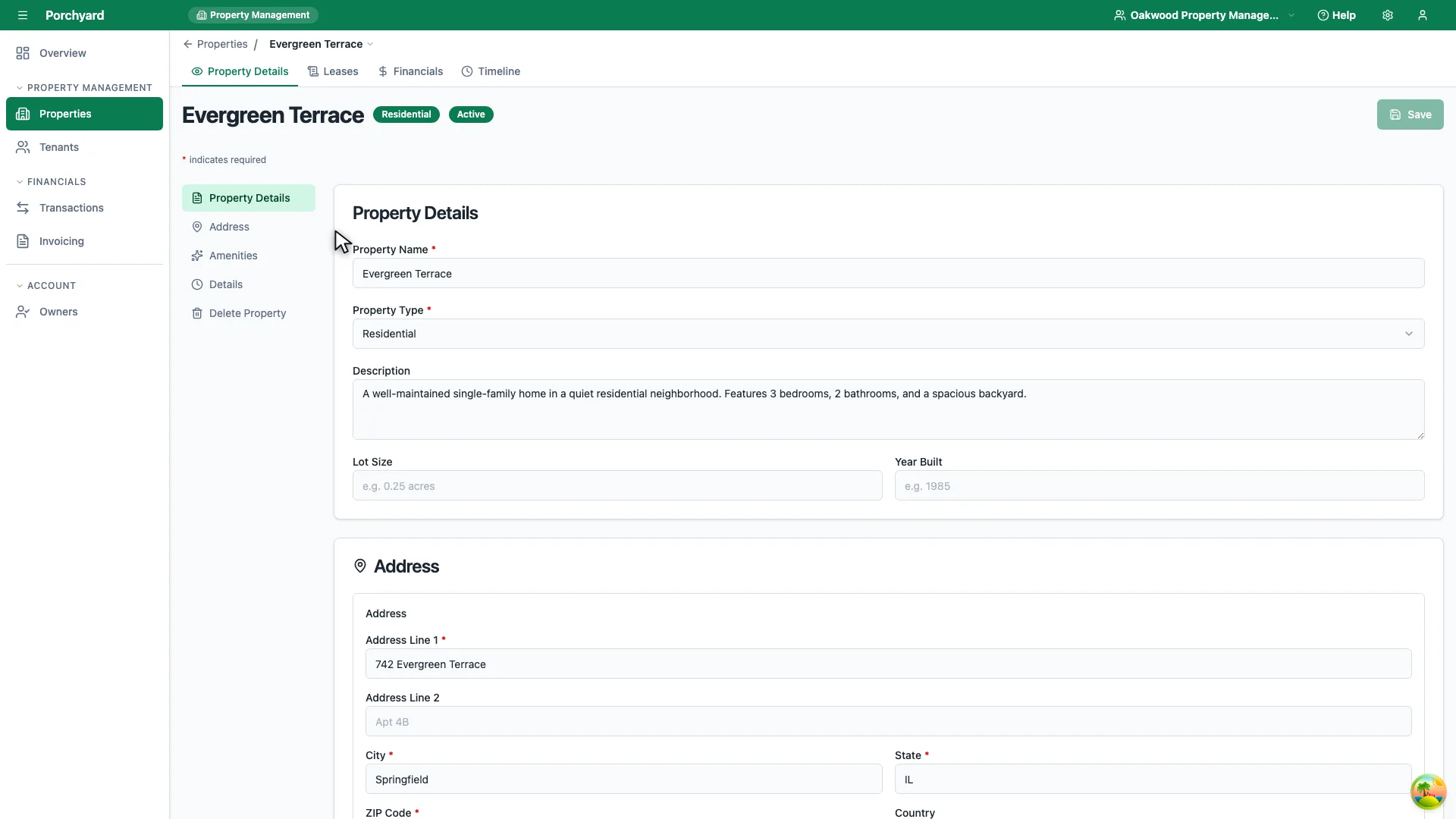
Step 3 of 4
Opening a property lands on its details, with its tabs across the top.
-
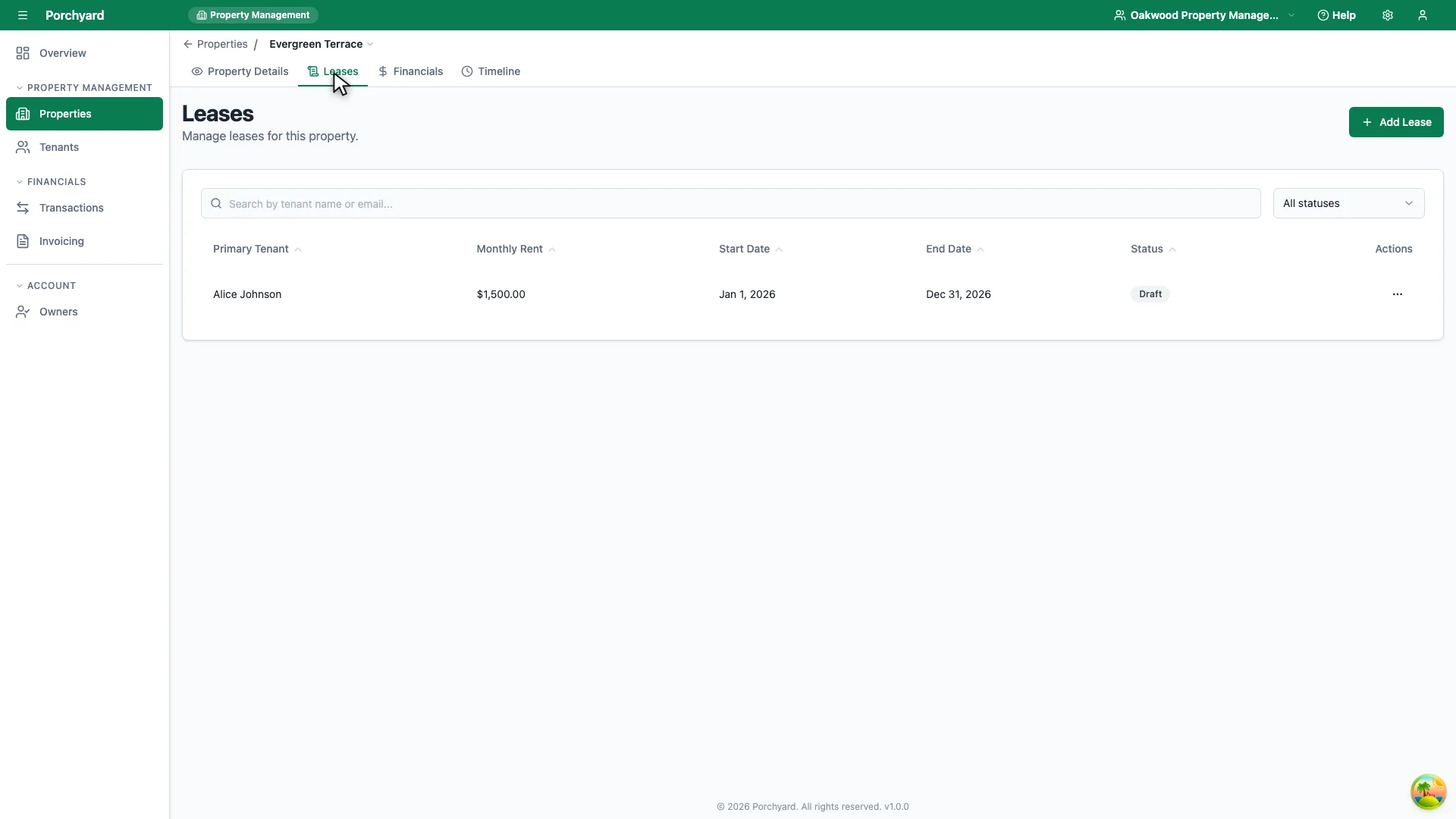
Step 4 of 4
The Leases tab records the term, the rent and who each lease is with.
Recording your leases in Porchyard keeps the terms that matter -- rent, dates, term -- attached to the space they apply to, so you are never guessing when a lease is up or what the agreed rent is.
Add a lease
Open the property, go to Leases, then choose Add Lease. Record:
- Tenants -- who the lease is with: the primary tenant, plus any co-tenants.
- Unit -- for a multi-family property, the label for this rentable space, such as
Unit Aor2B. Leave it blank for a single-family home. This is what tells two leases on the same building apart in the lease list. - Term -- start and end dates.
- Rent -- the monthly amount.
Keep the spending that goes with a lease evidenced too. See Attach receipts to your transactions.
Stay ahead of key dates
The value of recording leases is not having to remember dates. Keep an eye on:
- Expiry and renewal -- start renewal conversations well before the end date rather than scrambling at the last minute.
- Rent changes -- when a renewal changes the rent, update the lease so the record matches what the tenant actually pays.
Keep it tidy
- One active lease per unit. When a tenant moves out, close the old lease and add the new one so the history stays clear.
- Check the lease against your transactions. The rent on the lease should line up with the rent payments in your imported transactions.