Create and send an invoice
Where invoices come from, how to raise a one-off invoice to an owner or anyone else, and how to send it and follow it from draft to paid.
Raise and track an invoice
The invoice list, its statuses, and the form behind a new one.
-
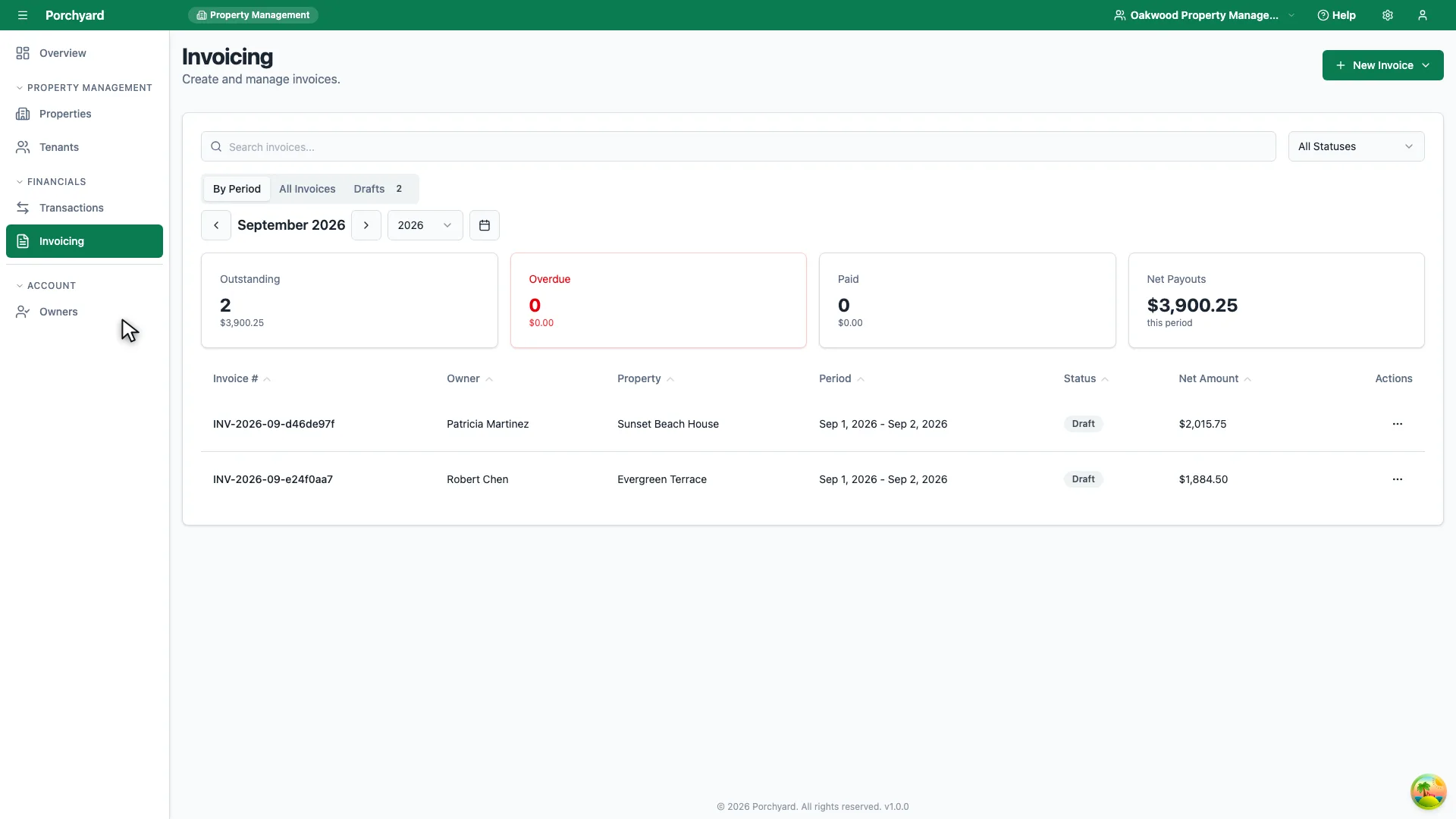
Step 1 of 2
Invoicing in the sidebar lists every invoice you have raised.
-
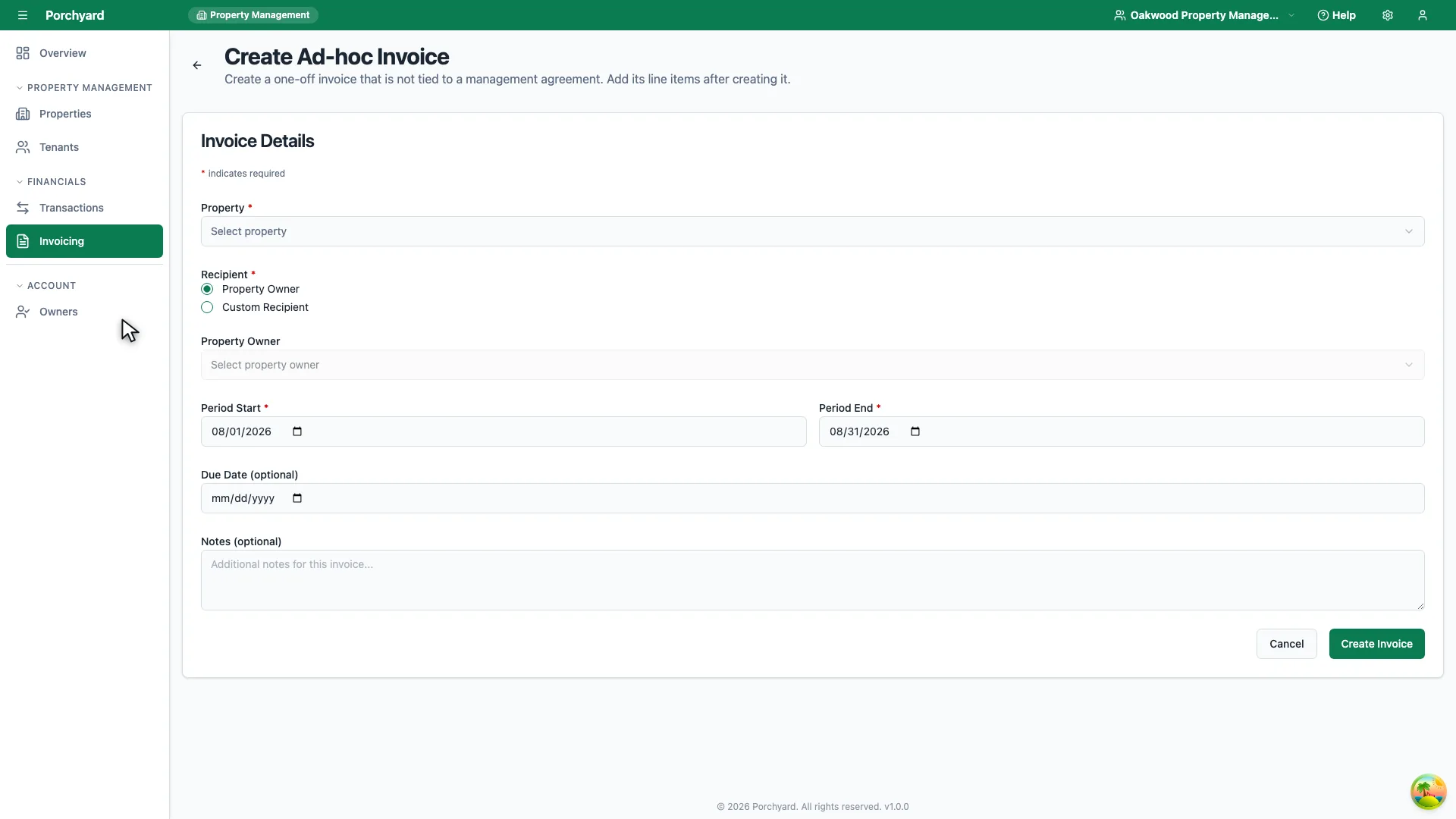
Step 2 of 2
Create Ad-hoc Invoice raises one outside a management agreement.
Every invoice in Porchyard is addressed to a property owner or to a custom recipient you name. Most are drafted for you: when you manage a property under a management agreement, its invoice is drafted at the end of each billing period (see Management-company invoicing). For anything else, raise an ad-hoc invoice. Invoicing is included on every plan.
Raise an ad-hoc invoice
Open Invoicing, choose New Invoice, then Ad-hoc (no agreement). Then:
- Pick the property the invoice belongs to.
- Choose the recipient: one of the property's owners, or a Custom Recipient with a name and an email address.
- Set the period it covers, and optionally a due date and notes.
- Create it, then add its line items -- each one a description and an amount.
The invoice is saved against the property, so it shows up in that property's records.
Send it
An invoice starts as a draft. When it is ready, choose Mark as Sent and Porchyard emails the recipient with the invoice PDF attached. It can only be sent to someone with an email address, so give a custom recipient one if you want Porchyard to deliver it. You can download the PDF at any time, and Resend Invoice if a sent one did not arrive.
Track what is outstanding
The Invoicing list shows each invoice's status -- draft, sent, paid, or overdue. Choose Record Payment once an invoice is settled. A sent invoice that passes its due date unpaid is marked overdue for you, so filter by status to see what needs attention.
Tips
- Itemize rather than bundling charges into one line -- it keeps questions short.
- Reconcile against your transactions. When a payment shows up in an imported statement, categorize it so your financial summaries stay accurate.