Read your property financial summary
Understand the income, expense, and cash-flow totals Porchyard builds for each property from your categorized transactions.
Find a property's income and expenses
Six steps from the property list to a full transaction history, as the app actually looks.
-
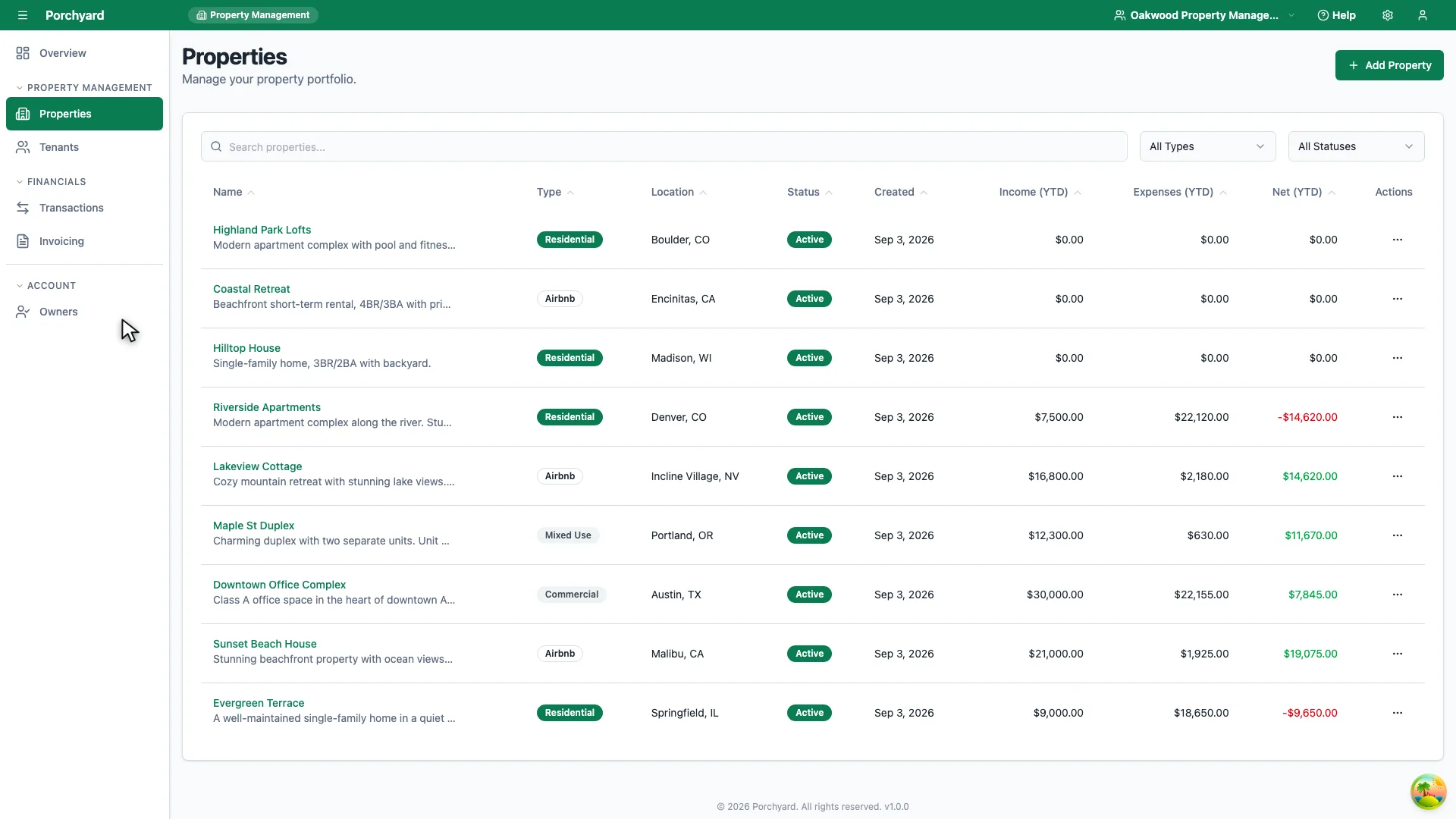
Step 1 of 6
Start from Properties in the sidebar.
-
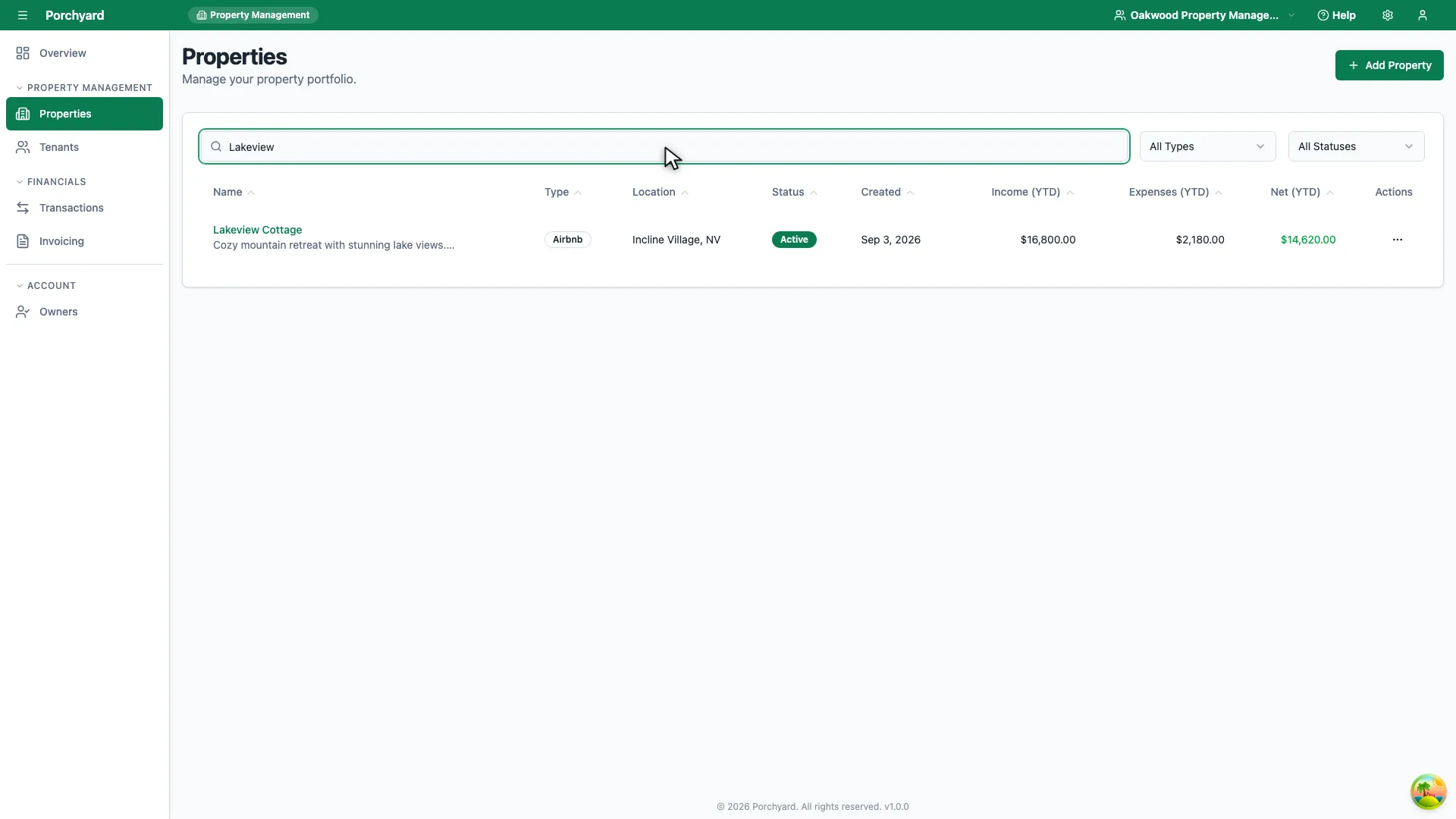
Step 2 of 6
Type any part of the property name to narrow the list.
-
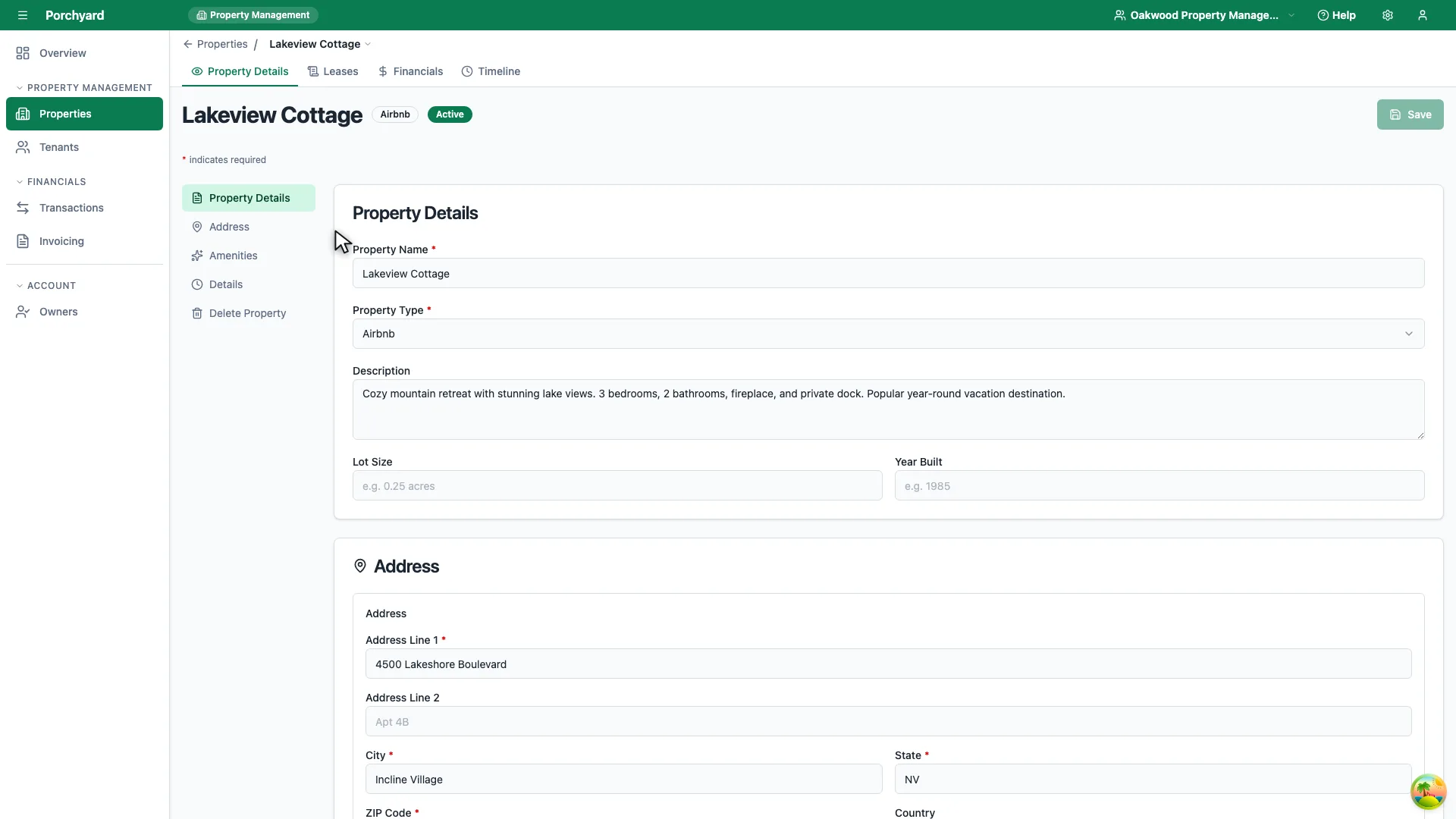
Step 3 of 6
Open it from the results to reach the property record.
-
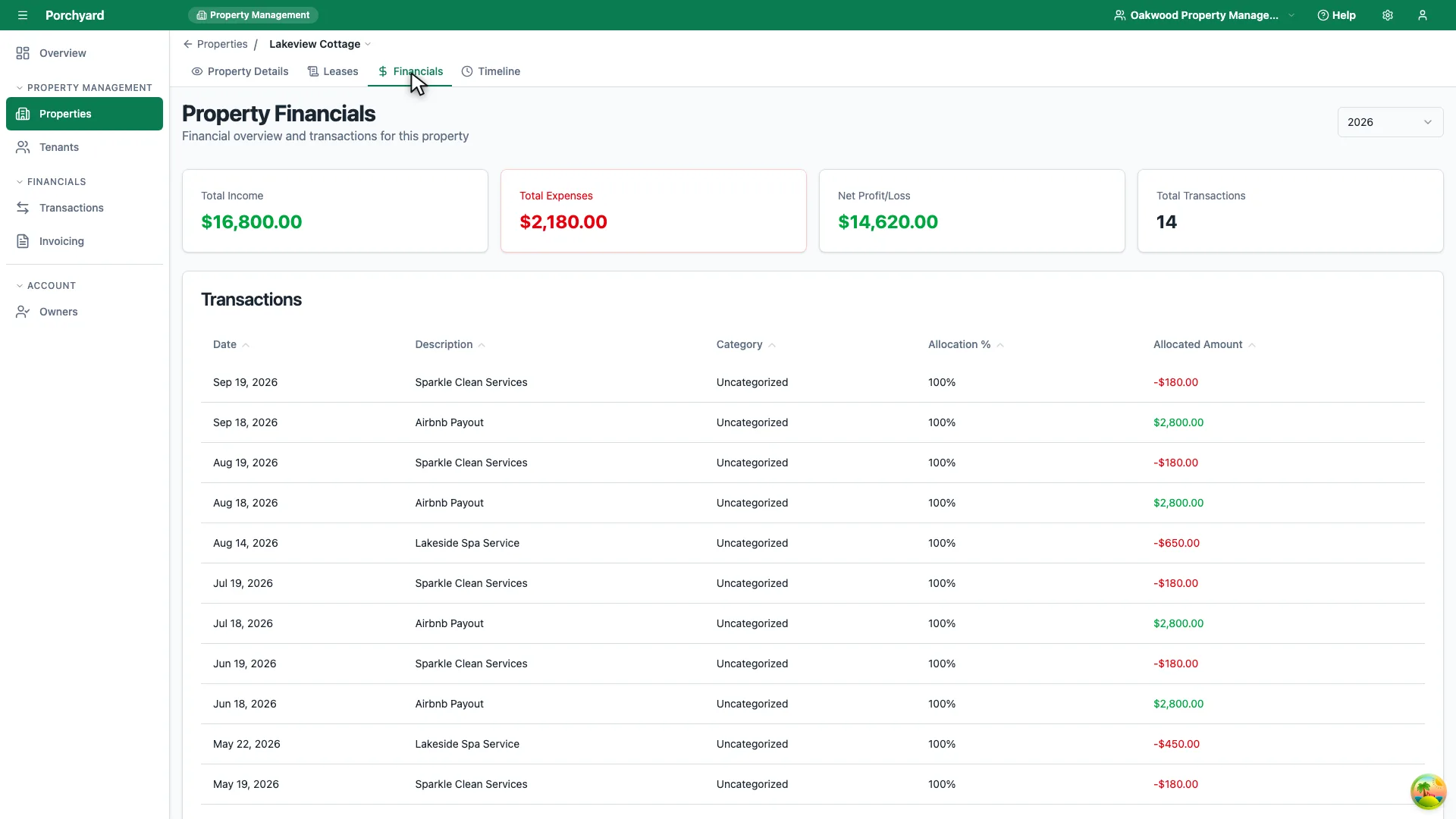
Step 4 of 6
Choose the Financials tab to see this property on its own.
-
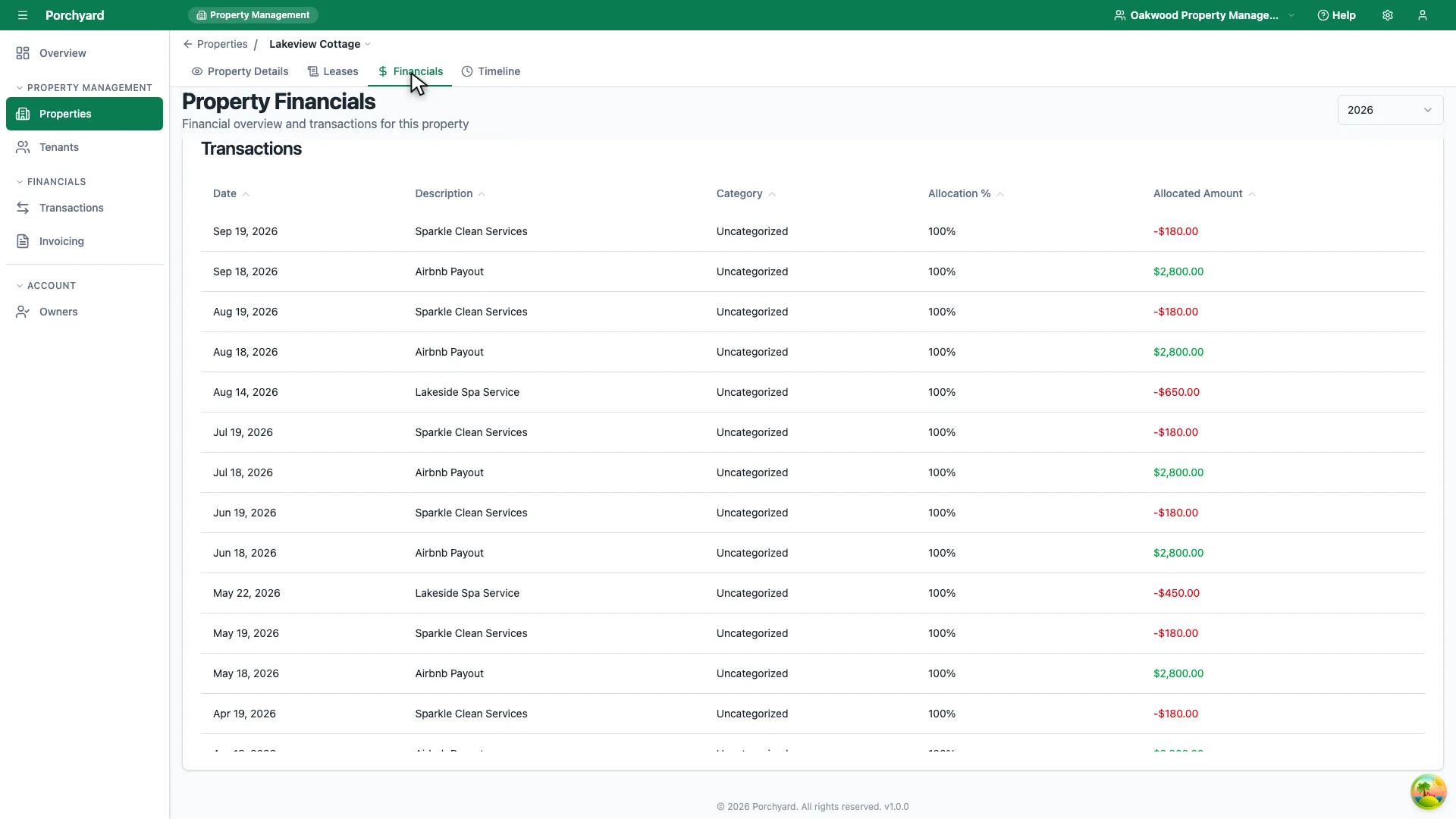
Step 5 of 6
Every transaction behind those totals is listed underneath.
-
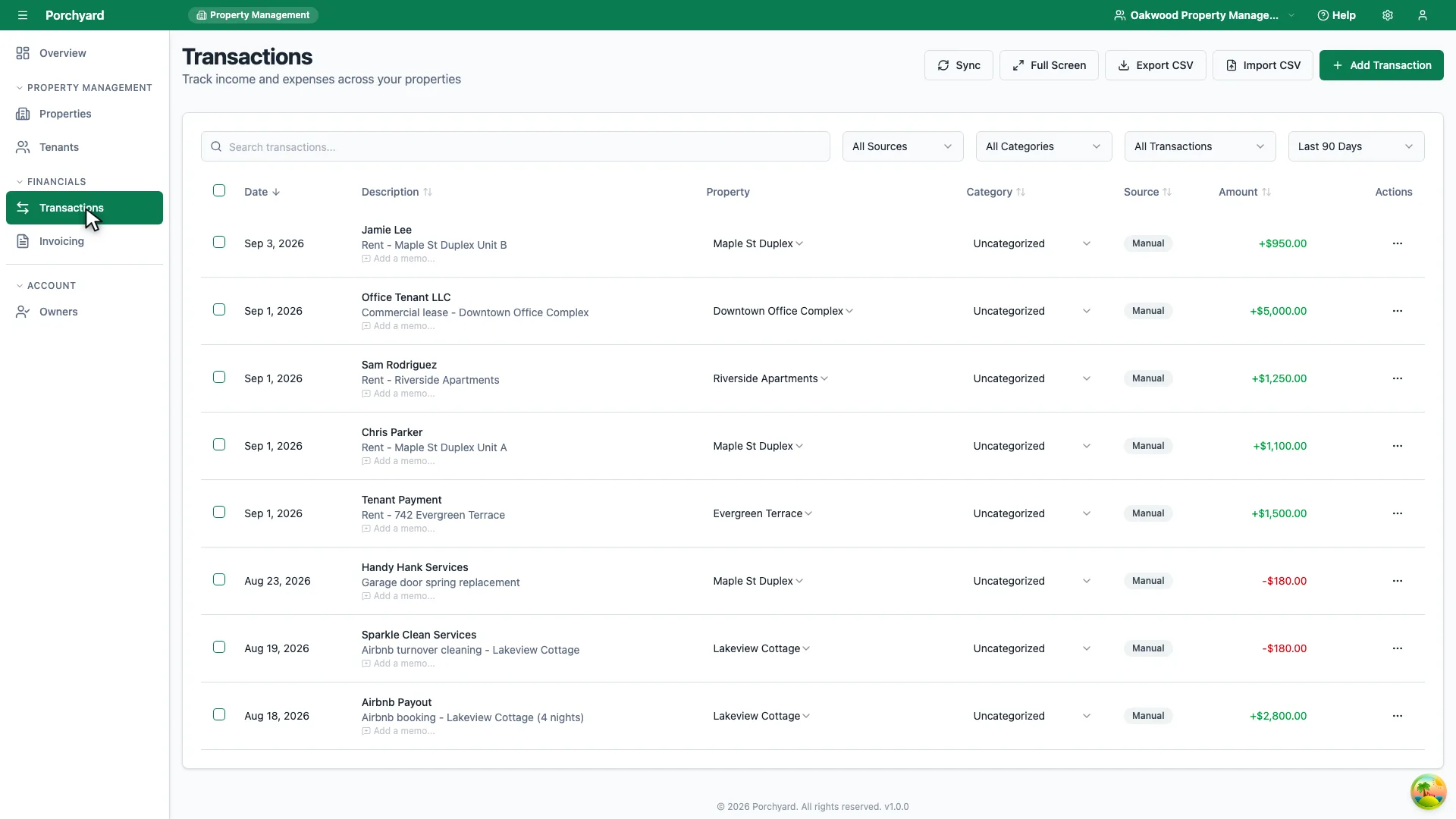
Step 6 of 6
Transactions in the sidebar shows every property at once.
Once your transactions are imported and categorized, Porchyard rolls them up into a financial summary for each property. This is the view that tells you, at a glance, whether a property is making money.
What the summary shows
Open a property and go to its Financials tab. Pick a calendar year, and Porchyard shows four totals for that property:
- Total income -- money received that is assigned to the property.
- Total expenses -- money spent that is assigned to it.
- Net profit or loss -- income minus expenses for the year.
- Total transactions -- how many transactions make up those figures.
Below the totals is every transaction behind them, with its category and -- when a payment is split across several properties -- this property's share of it.
Use it through the year
- Spot problems early. A property whose expenses are outrunning its income this year is worth a closer look.
- Check your categories. If a number looks off, it is usually an uncategorized or miscategorized transaction. Jump back to Categorize your transactions to fix it.
At tax time
Your accountant will want each property's income and expenses for the year. The Financials tab gives you those totals, and the transaction list beneath them shows where every number comes from. Keeping receipts attached to their transactions means the backup is right there if a number is ever questioned.