Add properties and units
Add each property in your portfolio, record its details, and label each rentable space on its own lease. Everything else hangs off these records.
Add a property to your portfolio
From the Properties list to a saved property record.
-
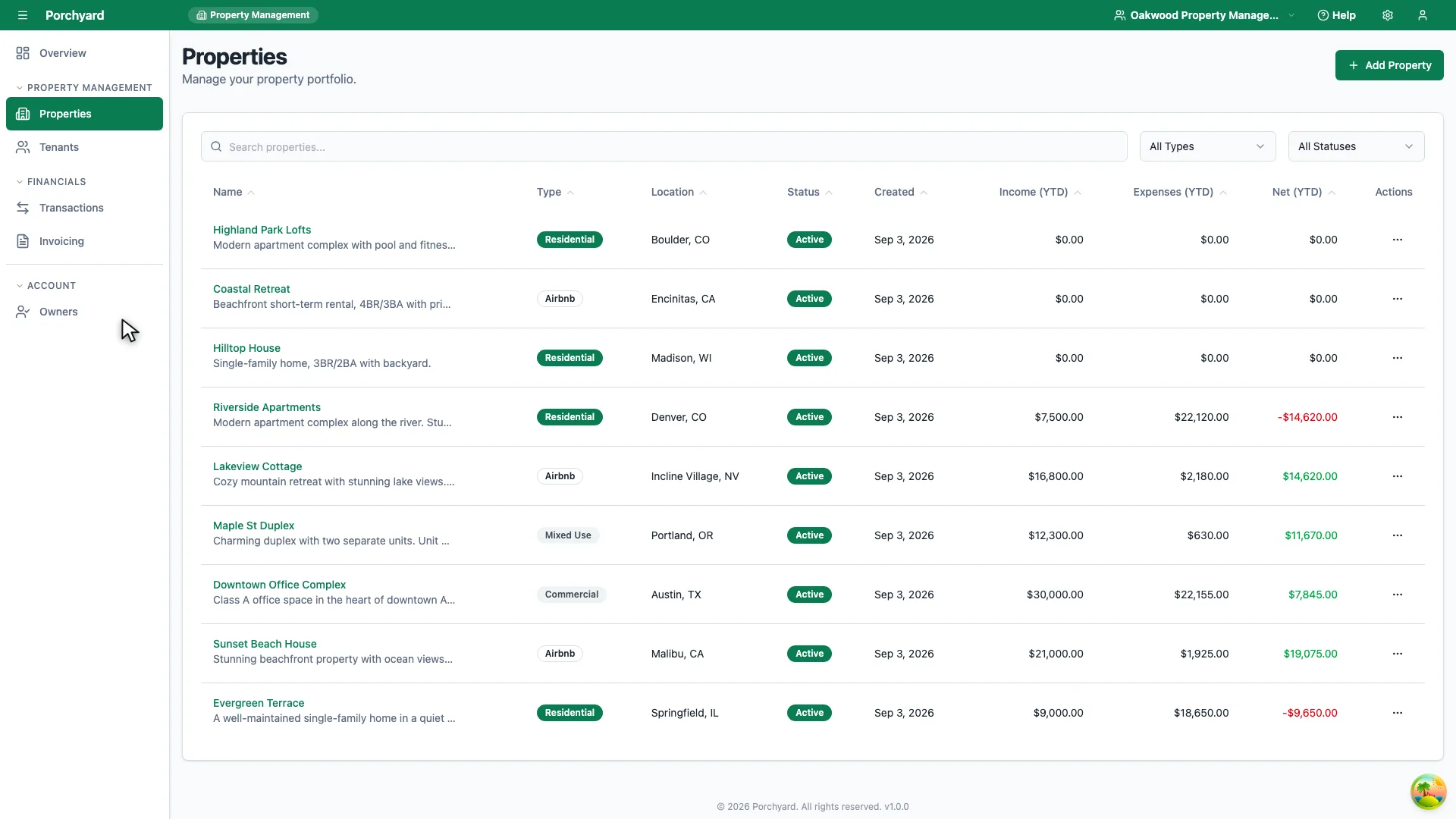
Step 1 of 3
Open Properties from the sidebar to see everything you already track.
-
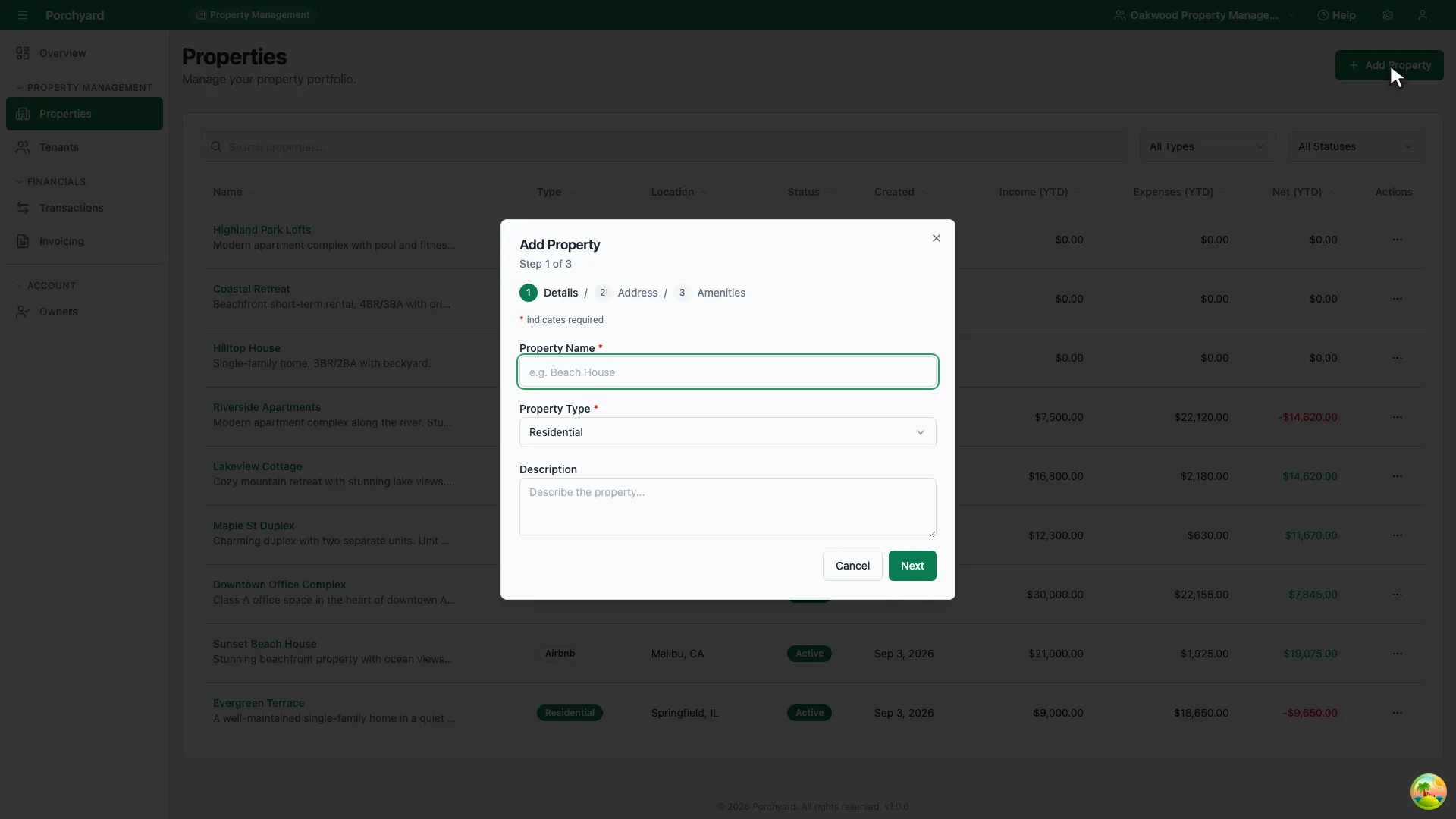
Step 2 of 3
Choose Add Property, then fill in whatever details you have to hand.
-
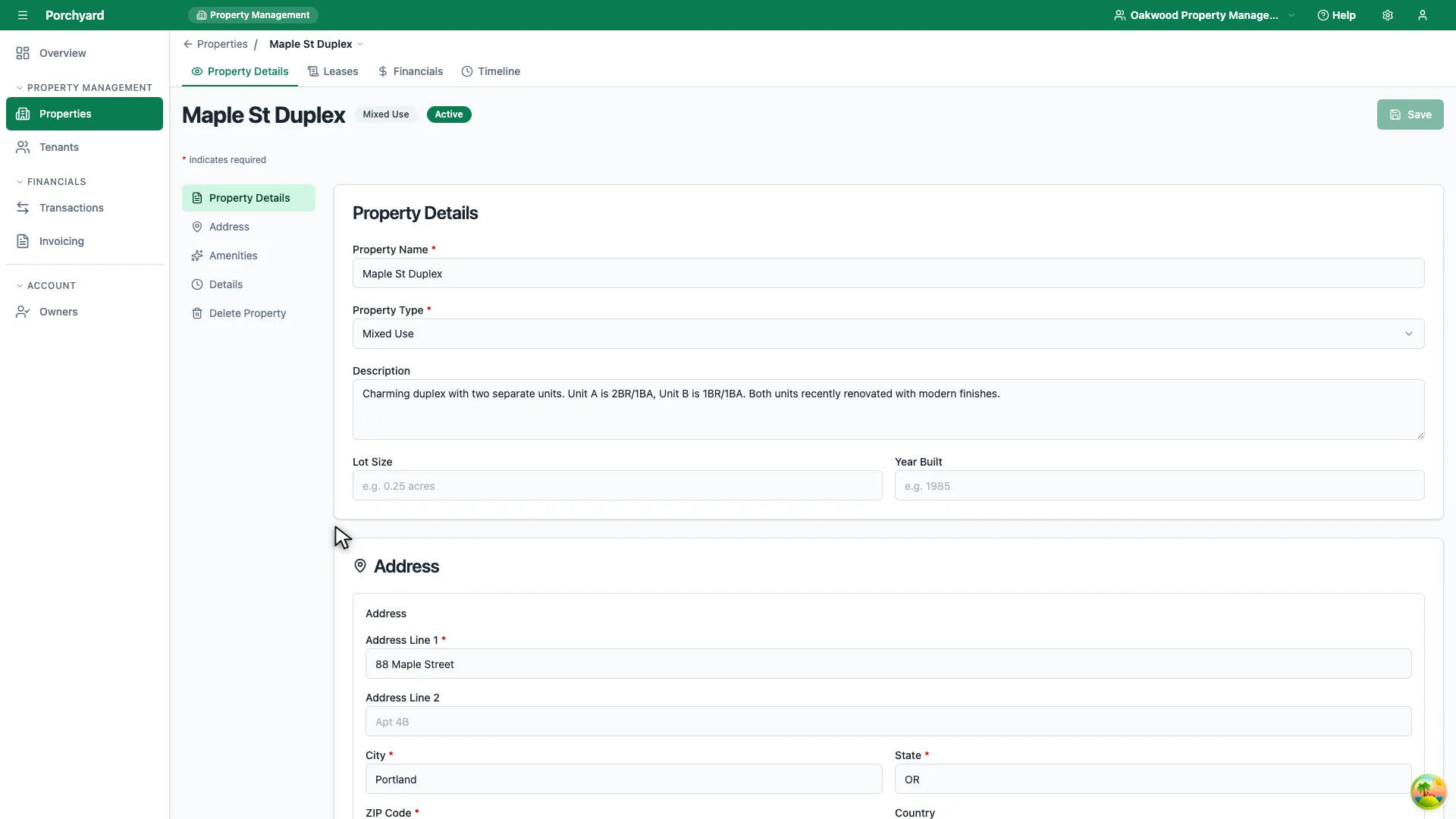
Step 3 of 3
Open any property to edit its details. A multi-unit building's units are the leases on its Leases tab.
Properties are the foundation of everything else in Porchyard: transactions, invoices, and leases all attach to a property. This guide walks through adding one.
Add a property
From the dashboard, open Properties and choose Add Property. Fill in the details you have on hand -- you can always edit them later:
- Name -- what you call the property, such as
Maple St Duplex. - Address -- street, city, state, and ZIP.
- Property type -- Residential, Commercial, Airbnb, or Mixed Use.
- Year built, lot size, and amenities -- the details a listing or an owner asks about.
- Description -- anything worth remembering, such as HOA contacts or access instructions.
Add photos from the property's page once it is saved.
Save the property and it appears as a card on your Properties page.
Record units on a multi-family property
A unit is not a separate record in Porchyard -- it is a label on the lease. If a property has more
than one rentable space, open the property, go to Leases, and choose Add Lease for each
space. Fill in the Unit field with the label you already use, for example Unit A, 2B, or
Basement.
That label appears in the property's lease list and on the lease itself, so a duplex with two tenants reads as two leases you can tell apart, each with its own dates, rent, and tenants.
Single-family homes leave Unit blank; the property itself is the rentable space, and the lease list shows it as "Whole property".
Tips
- Properties are added one at a time; each takes about a minute. Your transaction history is the part that comes in bulk, from your bank's CSV statements.
- Give every property a name you will recognise in a transaction list -- it is how you will assign income and expenses to it.
Next, keep your paperwork in order with Attach receipts to your transactions.