Invite team members
Bring a business partner, bookkeeper, or assistant into Porchyard so more than one person can manage the portfolio. Each person gets their own sign-in.
Invite someone to the account
Where your team lives, and what an invitation asks for.
-
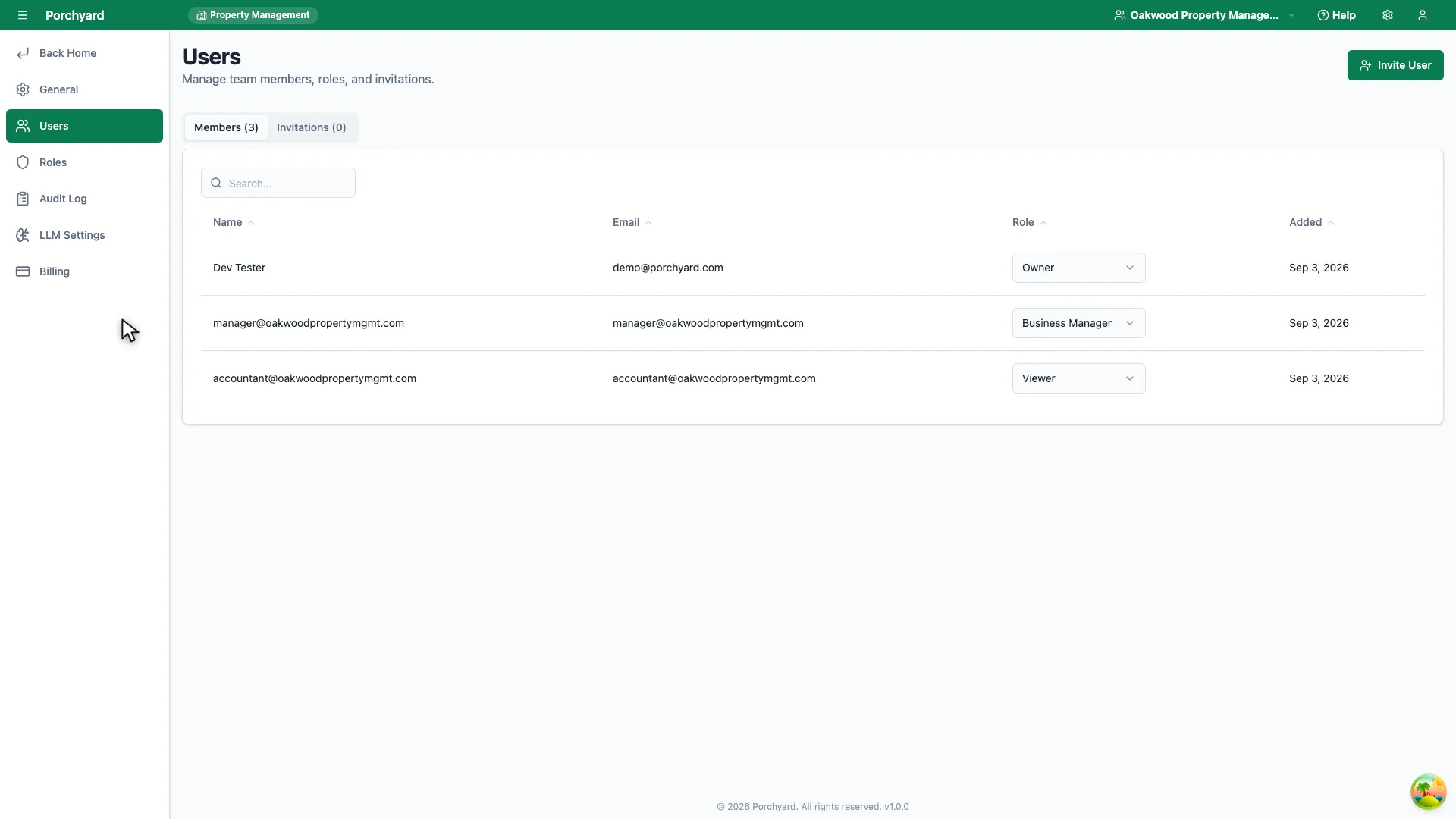
Step 1 of 2
Account settings holds Users: everyone who can sign in to this account.
-
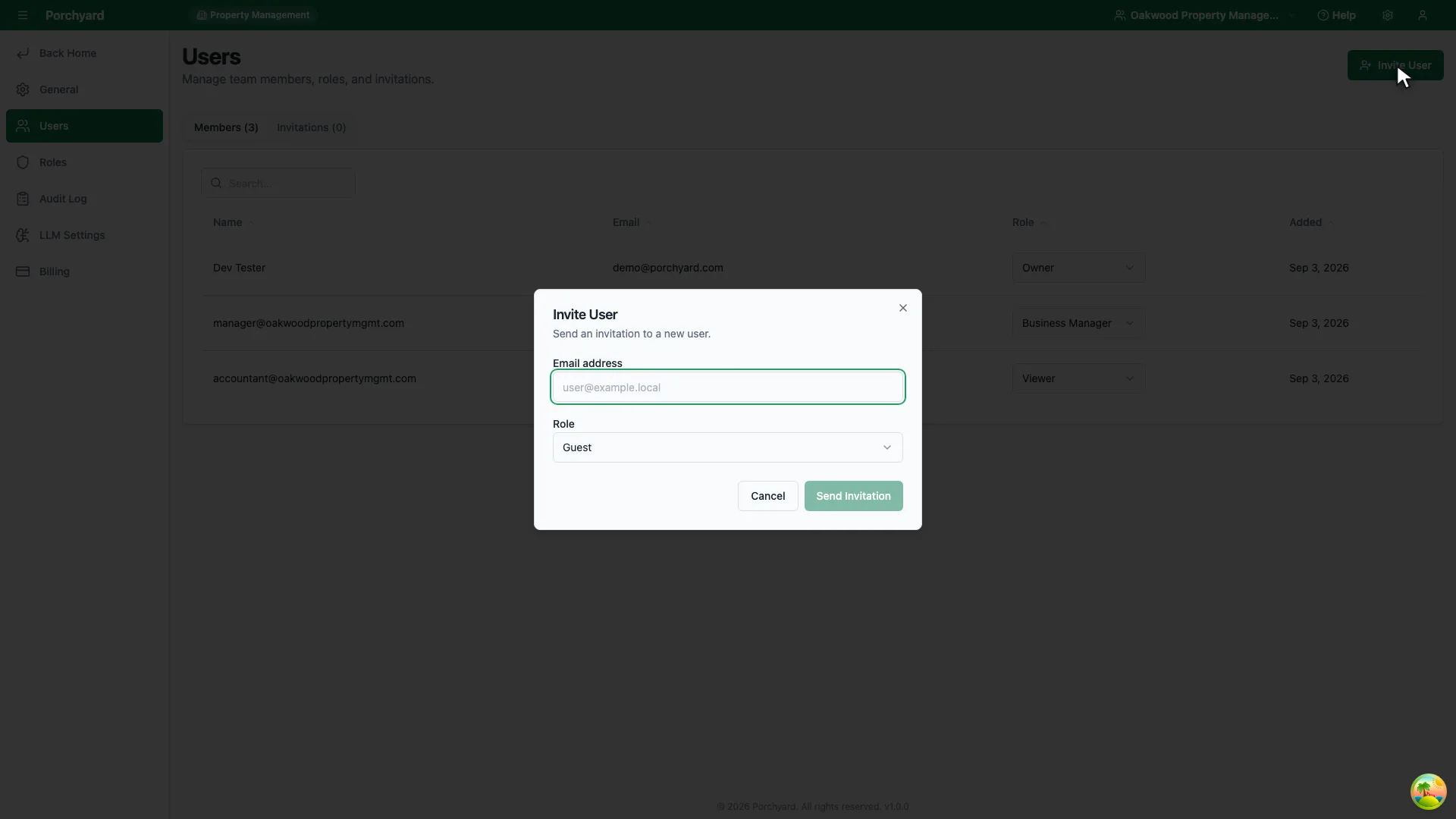
Step 2 of 2
Invite User asks for an email address and the role they should get.
Managing a portfolio is rarely a one-person job. Team members let you bring a business partner, bookkeeper, or assistant into Porchyard so the work is shared and nothing falls through the cracks. Team members are included on every plan.
Send an invitation
Open Account Settings -> Users and choose Invite User. Enter the person's email address and send the invitation. They receive an email with a link to join your workspace; once they accept and create their sign-in, they can start working in the same portfolio you do.
Who to invite
- A bookkeeper or accountant who imports and categorizes transactions for you.
- A business partner who co-owns the portfolio and needs the full picture.
- An assistant who handles day-to-day tasks such as sending invoices or chasing receipts.
Managing your team
- Remove access when it ends. When someone stops working with you, remove them from Account Settings -> Users so their access ends cleanly.
- Mind your plan limits. Each plan allows a certain number of properties; if you are growing the team you are probably growing the portfolio too, so check that your plan still fits. See Manage your plan and billing.